
The StayLuma.ai web application is where front-office staff, managers and administrators manage hotel operations. You need an account supplied by your administrator and your hotel's administration address.
Sign in
- Open the administration address your administrator gave you.
- On Log In, enter your User Name and Password.
- Select Log In.
If you have forgotten your password, select Forgot password? on the sign-in screen. If you cannot regain access, contact your administrator.
Use your own account. Your permissions determine which records and operations you can access. Access to the Staff App does not by itself establish access to every administration workflow.
Find your workflow
Expand a group in the left navigation and select its page. The navigation Filter narrows menu items; a list's Text to search / filter control searches records in that list. Hide Navigation Pane makes more room for the current view.
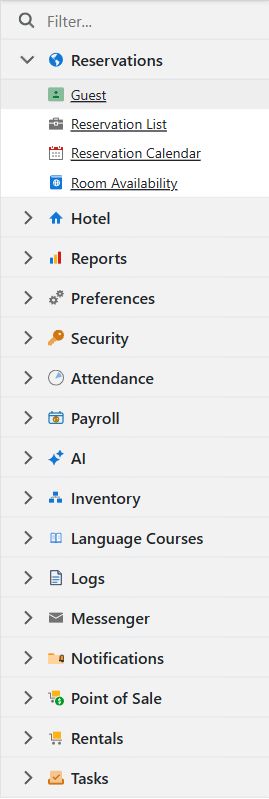
| Work | Guide |
|---|---|
| Guests, bookings, arrival and departure | Reservations |
| Hotels, areas, rooms and cards | Hotel setup |
| Rosters and leave | Staff and schedules |
| Assignments and recurring housekeeping | Tasks |
| Punches, anomalies and recalculation | Attendance |
| Payslips and payroll review | Payroll |
| Catalog, sales and kitchen work | Point of sale |
| Stock and linen | Inventory |
| Hired items and physical assets | Rentals |
| Conversations and automatic notices | Messaging and Notifications |
| Assistants and calls | AI and phone lines |
| Staff training | Language courses |
| Management output | Reports |
| Accounts and permissions | Users and roles |
| Booking source configuration | Preferences and imports and Channel manager |
| Investigation | Logs |
Work with records
Use a list's search/filter controls to find a record, then open it to inspect its detail form. New opens a blank record. Fields marked with an asterisk require a value. Save persists your changes; Save and New also opens the next blank record. Leaving an unused blank form without saving does not create a record.
Action availability depends on the selection, saved state, workflow status and permissions. When an action is disabled, check those conditions before asking an administrator for broader access. Some actions immediately perform work or send a message; read their confirmation and scope before accepting.
Choose the right application
Use the web application for administration and front-office work. For daily mobile workflows such as working through assigned tasks, scanning room codes and recording stock, see Getting started with the Staff App.