
Use Payroll to calculate staff payslips for a hotel and date range. Before a real calculation, review attendance, approved leave and overtime, compensation agreements, advances and commission inputs. Your account needs permission for the payroll records and actions you use.
Staff Payslip contains the individual results. Salary Advance records requested/approved amounts, disbursement date, installments and remaining balance. Payroll Adjustment links an amount and reason to a payslip. Commission Entry and Shared Commission Allocation provide the sales inputs. Review these records before calculation; saving an advance or marking payroll paid does not itself transfer money.
Create and calculate a period
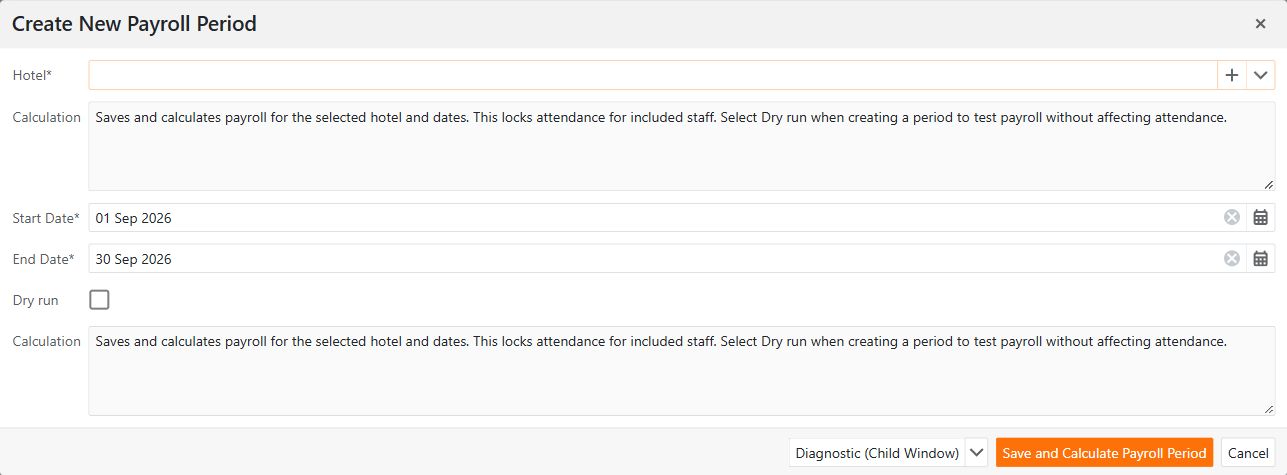
- Open Payroll → Payroll Period and select New.
- In Create New Payroll Period, choose Hotel, Start Date and End Date. The initial range is the previous calendar month; check it against the hotel's time zone.
- For a preview, select Dry run. Leave it cleared for real payroll.
- If the real period includes today and the app warns about unfinished attendance, review that warning before acknowledging the lock.
- Select Save and Calculate Payroll Period.
The period and calculated payslips are saved together. Cancelling the dialog leaves no new period. A calculation or validation error leaves no partially saved period or payslips; resolve the reported cause before trying again.
Real calculation locks attendance records for the included hotel, staff and dates. Later terminal events do not automatically replace those locked results.
Understand a dry run
A dry run saves preview payslips, but does not change attendance locks, consume commission entries or create salary-advance repayment records. You can reopen and recalculate it. You cannot mark it reviewed, approved or paid, or convert it into real payroll. Create another period with Dry run cleared when you are ready for a real calculation.
Review and record approval
Inspect the calculated payslips and their line descriptions. For a real period, the available sequence is Mark Reviewed, Approve Payroll, then Mark Paid. Each action saves the corresponding payroll status. Recording Paid is a status change; arrange the actual staff payment through your hotel's payment process.
Correct attendance after calculation
- Select the real period and choose Reopen Payroll.
- Enter the reason and confirm. Reopening retains payslips and releases the applicable attendance locks, except records also covered by another locked real period.
- Reprocess attendance for the affected hotel and dates, then review its results.
- On the reopened period, select Calculate Payroll and confirm the calculation when attendance is ready.
- Review and approve the new results again.
Reopening alone does not reprocess attendance. Recalculation replaces calculated lines rather than adding another copy, and locks the applicable attendance again.
Set overtime policy
Open Payroll → Payroll Policy. These settings are shared across hotels:
| Setting | Meaning |
|---|---|
| Overtime calculation | Fixed hourly rate or Prorated base salary. |
| Fixed overtime hourly rate | The base hourly rate for fixed-rate calculation. Zero means zero pay. |
| Working hours per day for overtime | The daily-hours divisor for salary-based overtime; greater than zero and at most 24. |
| Overtime premium (%) | Added to the base hourly rate. A premium of 50 pays 150% of that rate. |
Salary-based overtime uses the agreement effective on the overtime date: monthly base salary divided by that month's calendar days and the overtime daily hours, then increased by the premium. Allowances and benefits are excluded from this base salary. A missing or ambiguous agreement stops the calculation.
Only approved overtime requests are included. Approved hours remain visible even when their rate or amount is zero. Payslip descriptions retain the calculation basis; changing today's policy does not rewrite an existing payslip. Recalculate a draft or reopened period to apply a correction.
Delete a period
Deletion removes its payslips too. The confirmation offers Reopen attendance records, selected by default for real payroll. Clear it to retain attendance locks. Cancel to keep the period. Unlocking still respects other real payroll periods and does not reprocess punches; deleting a dry run never unlocks attendance.
See Staff schedules and leave for approved leave and corrections that affect payroll.